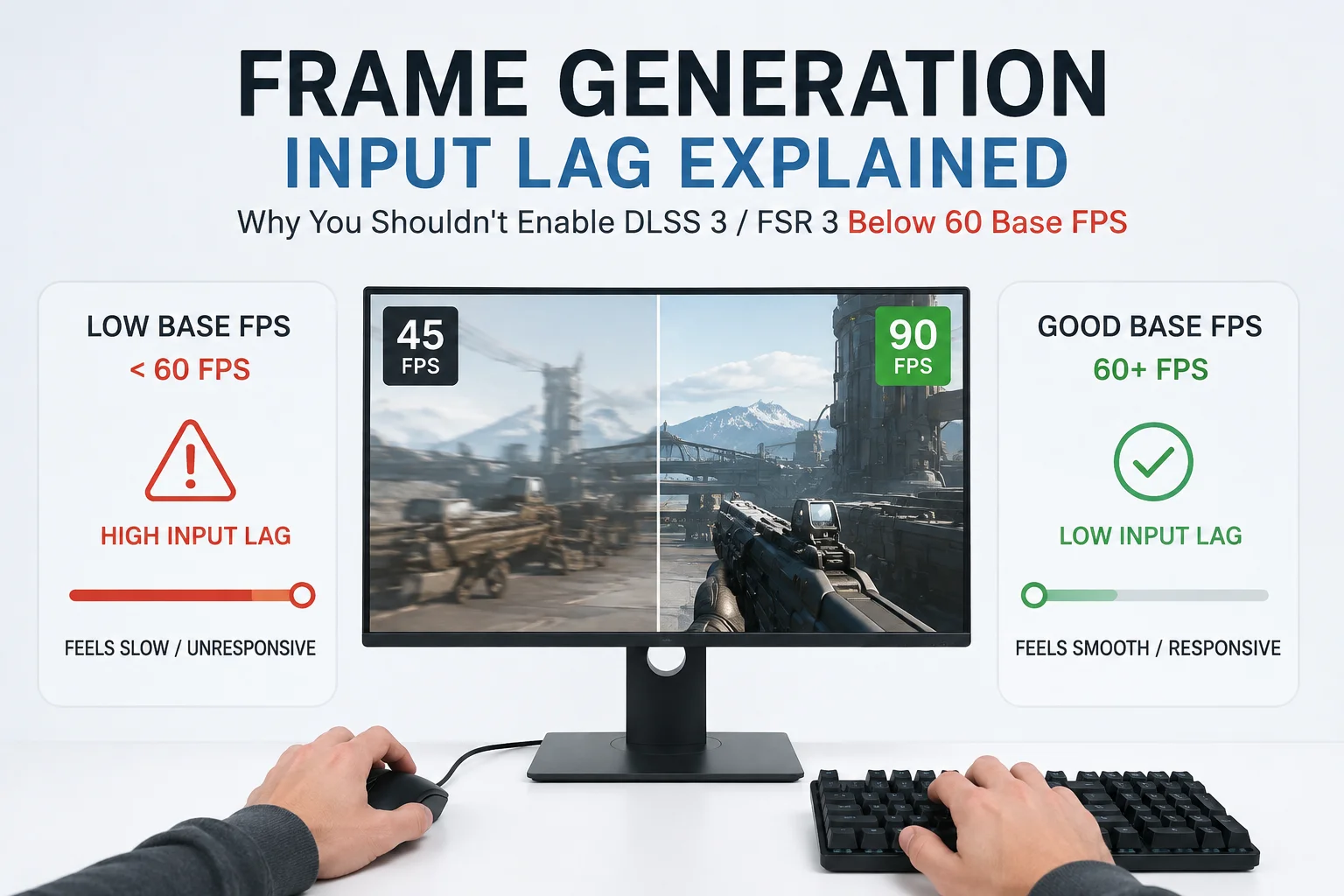
Somewhere out there right now, a guy is screenshotting his FPS counter reading "112" and posting it with three fire emojis, while his character turns corners like he's dragging a fridge behind him. He's not wrong about the number. He's just measuring the wrong thing. Frame Generation is the only PC gaming feature that can make you feel like you upgraded your GPU and downgraded your mouse at the exact same time, and almost nobody tells you why.
So let's actually open the hood. Not the marketing hood — the real one, with the fans and the queues and the millisecond math nobody puts on a slide at a keynote.
The Frame Your Eyes See Isn't the Frame Your Mouse Talked To
Here's the part that trips everyone up: a "frame" on your screen is not one single thing. There are real frames — the ones your CPU and GPU actually computed based on where your mouse pointed and which key you pressed — and there are generated frames, which are the GPU's best guess at what probably happened in between two real frames it already has.
The guess is genuinely impressive. DLSS 3 and FSR 3 use motion vectors and optical flow data to paint a convincing "middle" image. But a guess, by definition, doesn't know about the input you made after the last real frame was captured. It can't. That data doesn't exist yet.
A Quick Mental Model
- Your GPU finishes rendering Real Frame A. It gets held, not shown yet.
- Your GPU finishes rendering Real Frame B. Now it has two anchor points.
- The frame generation model builds a synthetic frame that sits between A and B.
- The display order becomes: A, then the generated frame, then B — and B, the one holding your actual latest input, gets delayed slightly so the sequence stays smooth.
That fourth step is the whole story. To keep motion looking clean, the system has to sit on a real frame for a beat. At a healthy frame rate that beat is tiny and forgettable. At a low frame rate, that beat turns into something your hands can actually feel.
Where the Milliseconds Actually Go
People love to argue about Frame Generation in the abstract, so here's a rough, illustrative breakdown of where latency tends to pile up in a typical DLSS 3 / FSR 3 pipeline. These aren't lab-certified numbers for every game — think of them as a representative example of the shape of the problem.
| Stage | Base FPS ~75 (Healthy) | Base FPS ~40 (Weak) |
|---|---|---|
| CPU game logic + input read | ~4 ms | ~4 ms |
| GPU render of real frame | ~7 ms | ~14 ms |
| Frame generation compute overhead | ~2-3 ms | ~4-6 ms |
| Held-frame queue delay | ~3 ms | ~10-12 ms |
| Reflex / Anti-Lag reduction | -2 ms | -3 ms |
| Approximate click-to-photon total | ~14-16 ms | ~32-38 ms |
Notice what doesn't change much between the two columns: the displayed FPS could look almost identical after Frame Generation multiplies both of them. But the actual delay between your click and the screen reacting is more than double in the weak-base scenario. The counter lies. Your hands don't.
My Own "Wait, Something's Off" Moment
I'll be honest about how I actually noticed this instead of just reading about it. I was running Cyberpunk 2077 with path tracing on a RTX 4070-class card, DLSS Frame Generation flipped on, and the counter was happily sitting around 88 FPS. Looked glorious. Felt like I was aiming through syrup during a firefight. Dropped path tracing to regular ray tracing, watched my native base rate climb from roughly 38 FPS to about 63 FPS before Frame Gen even touched it, flipped Frame Gen back on, and the exact same 88-ish FPS counter suddenly felt like a completely different game. Same displayed number twice. Two totally different experiences. That gap is not in your head, its the queue delay from the table above doing its thing.
Why the GPU Is Basically Doing Two Jobs at Once
Frame Generation isn't free. It runs on the same GPU that's already busy rendering your real frames, which means it's competing for die space and time, not living in some separate dimension. As your native frame rate drops, the ratio of "real work" to "guessing work" shifts in an unhelpful direction.
| Native Base FPS | Approx. GPU Time on Real Rendering | Approx. GPU Time on Frame Gen / Optical Flow |
|---|---|---|
| 30 FPS | ~78% | ~22% |
| 45 FPS | ~83% | ~17% |
| 60 FPS | ~88% | ~12% |
| 90+ FPS | ~91% | ~9% |
At low base rates, a bigger slice of your GPU's limited time budget goes toward generating a frame that carries zero fresh input, instead of finishing the next real frame faster. You're spending scarce GPU cycles polishing a guess rather than shortening the wait for the truth.
Reflex and Anti-Lag Aren't Magic Erasers
NVIDIA Reflex and AMD Radeon Anti-Lag both work by tightening the CPU-to-GPU render queue so your commands don't sit around waiting longer than necessary. That's real and it genuinely helps — shaving a handful of milliseconds off almost every scenario. But neither one can remove the held-frame delay that Frame Generation itself introduces, because that delay isn't a queue inefficiency, it's a structural requirement of showing frames in the right order. Reflex trims fat around the edges of a problem that Frame Generation created on purpose.
The Multiplier Trap: 2x, 3x, and 4x Frame Gen
Newer multi-frame generation modes (the kind found on RTX 50-series cards) can insert two or three synthetic frames for every real one instead of just one. That sounds like an even bigger free lunch, but it actually raises the stakes on your base FPS, not lowers them. More generated frames between two real anchors means a wider gap of "guessed" motion with no new input, and a longer hold before the next real frame lands. If a single generated frame needed a 55-60 FPS floor to feel clean, a 3x or 4x multiplier realistically wants something closer to that same floor or higher — not lower — because the ratio of guesswork to ground truth just got worse, not better.
Stuff Worth Checking Before You Even Touch the Frame Gen Toggle
- Find out if you're CPU-bound first. Frame Generation barely helps a CPU bottleneck, since it's a GPU-side trick. Check GPU usage while your FPS is low — if it's well under 99%, your CPU or RAM setup might be the actual limiter. Our guide to balancing a CPU, RAM, and GPU combo walks through spotting that mismatch.
- Check your VRAM headroom. Frame Generation buffers extra frames, and that eats memory on top of what your game already needs. See our breakdown on how much VRAM actually matters in 2026 before assuming your card has room to spare.
- Kill the background clutter. Discord overlays, OBS, and a pile of Chrome tabs quietly steal CPU cycles your base frame rate needed. We measured this directly in our piece on what Discord, OBS, and Chrome actually cost you while gaming.
- Rule out storage-related stutter. Asset streaming hitches can tank your native frame rate before Frame Gen even gets a fair shot — our look at DirectStorage and NVMe asset streaming covers what's actually happening there.
- Double-check your PCIe lane situation on a mid-range card. It's rarely the culprit, but our PCIe 4.0 x8 vs x16 breakdown is worth a look if you're troubleshooting an unexplained shortfall.
- Make sure your GPU isn't throttling under heat. A card losing clock speed mid-session drags your base FPS down right when you need it stable — see our undervolting vs power limiting comparison for a fix that costs nothing.
Pros and Cons of Turning Frame Gen On Below a Healthy Base FPS
- Pro: The motion on screen genuinely looks smoother, especially on a high refresh monitor, even with a mediocre base rate underneath.
- Pro: Slower, cinematic single-player games can tolerate the added delay far better than anything twitch-based.
- Con: Input latency stacks on top of an already weak foundation instead of fixing it — you're multiplying a bad number, not repairing it.
- Con: Ghosting and smeared UI elements get more obvious the lower your native rate drops.
- Con: The FPS counter stops being a trustworthy measure of how the game actually plays, which makes benchmarking and comparisons meaningless.
- Con: VRAM overhead from frame buffering can quietly cost you frames elsewhere, especially on 8GB and 12GB cards.
What To Do Instead When Your Base FPS Won't Cooperate
- Turn on upscaling (DLSS or FSR Super Resolution) without Frame Generation — it lifts your native rate without adding the held-frame delay.
- Cap your frame rate slightly below your monitor's max refresh to keep pacing steady, which matters more than most people assume.
- Trim one or two demanding settings — ray tracing and shadow distance are usually the biggest offenders — until your native rate clears 55-60 FPS.
- If your hardware genuinely can't get there, it might be a hardware ceiling rather than a settings problem. Our RTX 5070 Ti vs RX 9070 XT comparison and our upgrade-vs-rebuild guide can help you figure out the smarter move.
- Working with a tighter budget? Our budget gaming PC build guide is built around hitting a real, playable native FPS first, upscaling second.
Finally
Use it when: your native FPS already sits at 55-60 or higher, you're chasing a high refresh monitor's ceiling, or you're playing something slow-paced where a few extra milliseconds won't cost you a fight.
Skip it when: your native rate is sitting in the 30s or low 40s, you're playing anything competitive, or your frame pacing was already inconsistent before you even opened the settings menu.
Bottom line: Frame Generation multiplies whatever foundation you hand it. A strong base FPS turns it into a genuine upgrade. A weak one just turns a bad number into a smoother-looking bad number.
If you want the deeper dive on the exact threshold where this starts to break down, we've also covered the 45 FPS baseline problem behind Frame Generation in a separate piece, and it's worth reading alongside this one — they answer slightly different questions about the same underlying mechanic.
A Few Things Worth Remembering
- Multi-frame generation (3x/4x) needs a higher base FPS floor to feel clean, not a lower one — don't assume newer means more forgiving.
- Reflex and Anti-Lag are worth leaving on permanently alongside Frame Gen, but treat them as a discount, not a fix.
- Test your native FPS with Frame Gen fully off first. That number, not the multiplied one, is your real starting point.
- If your GPU usage sits below 99% at low FPS, don't blame Frame Gen at all — you're probably CPU-bound and no graphics setting will save you.
- For a wider look at what else shapes your PC's real-world gaming performance, our Technology & PC Games section covers the rest of the stack.
For anyone who wants to go further down the rabbit hole, Tom's Hardware has done extensive independent latency testing on this exact topic, and Blur Busters has spent years documenting how input lag chains build up across the entire rendering pipeline. Official documentation from NVIDIA on DLSS and AMD on FidelityFX Super Resolution is a good starting point too, if you want the vendor's own framing before deciding what to believe.


Comments 0
Be the first to comment!