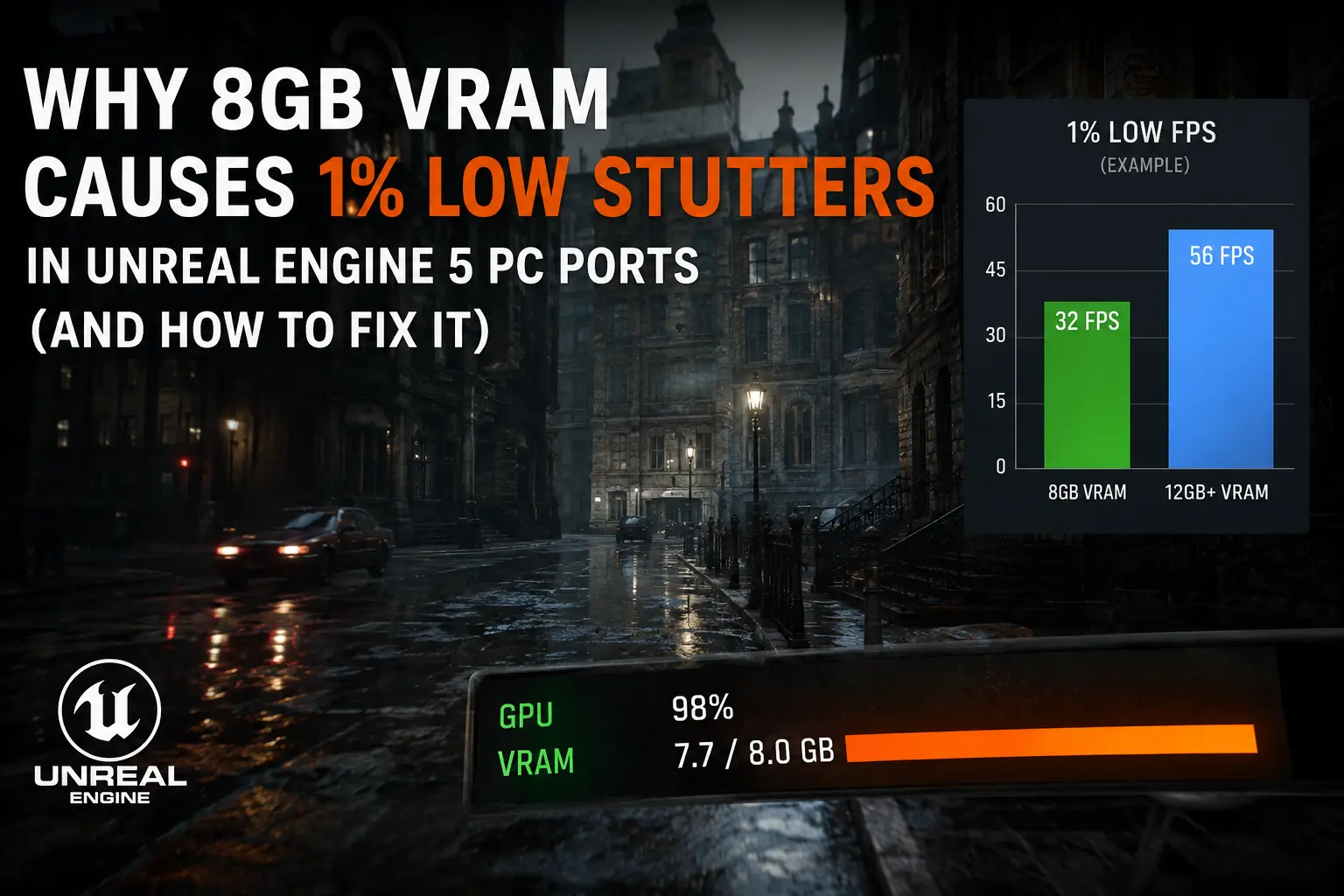
Your graphics card is basically a chef working out of a mini fridge. It can chop, sear, and plate faster than almost anyone in the kitchen, but if the fridge is too small to hold every ingredient for tonight's menu, dishes start coming out late, cold, or missing a side entirely. That's roughly what happens to an 8GB GPU the moment a modern Unreal Engine 5 port asks it to hold textures, Nanite geometry, Lumen lighting data, and shader caches all at the same time at 1440p.
The average FPS counter keeps looking healthy the whole time. Meanwhile the 1% lows quietly fall off a cliff, and every new room, every dense crowd, every quick camera pan turns into a half-second slideshow. This isn't really a "your GPU is too slow" problem. It's a "your GPU ran out of shelf space" problem, and the fix has surprisingly little to do with raw core power.
Average FPS Is a Liar, 1% Lows Tell the Truth
A benchmark that reads "87 FPS average" sounds great on paper. It says nothing about the half-second freeze that happened right as an enemy spawned, or the stutter that occured every time you turned a corner into a new streaming zone.
1% lows measure the worst 1% of frames rendered during a session. When that number sits far below the average, the game is technically running fast most of the time, but the moments that actually matter, combat, exploration, cutscene transitions, are the ones falling apart.
On an 8GB card, this gap between average and 1% low tends to widen exactly when VRAM usage creeps past what the card physically has. The GPU doesn't slow down gracefully. It starts evicting data it still needs, then has to reload it a moment later, and that reload is the stutter you feel.
What Unreal Engine 5 Actually Stuffs Into Your VRAM
People tend to think of VRAM as one big bucket for "textures." In a UE5 title it's closer to four or five separate buckets all fighting for the same shelf.
Nanite's Invisible Tax
Nanite lets artists throw film quality meshes into a game without hand built LODs. The tradeoff is that Nanite still needs cluster data, visibility buffers, and a virtualized geometry cache sitting in memory so it can decide what to draw at any given moment. None of that shows up as a "texture quality" slider, so it's easy to blame the wrong setting.
Lumen Wants a Permanent Seat at the Table
Lumen's global illumination and reflections rely on surface caches, screen probes, and distance field data that live in VRAM for as long as the scene exists. Turning off hardware ray tracing helps, but Lumen still keeps a seperate memory budget running even in its software mode.
Render Targets and Shader Caches Add Up Fast
Every buffer used for temporal upscaling, motion vectors, and post processing needs its own render target, and at 1440p or 4K those targets get large quickly. On top of that, shader permutations compiled for your specific hardware sit in a cache that also needs room.
Here's roughly how that shelf space gets divided in a fairly typical UE5 title running at 1440p with settings maxed:
| Component | Approx. VRAM Share | What It's Doing |
|---|---|---|
| Textures & material data | 35–45% | Diffuse, normal, roughness maps streamed by distance |
| Nanite geometry cache | 10–15% | Cluster and LOD data for virtualized meshes |
| Lumen (GI + reflections) | 10–20% | Surface caches, screen probes, distance fields |
| Render targets & buffers | 10–15% | Motion vectors, upscaling history, post-process passes |
| Shader cache & misc. | 5–10% | Compiled PSOs, engine overhead, driver reserve |
Add that up on an 8GB card and there's very little headroom left before the operating system, browser tabs, and a Discord overlay take their own slice too.
Shader Compilation Stutter Is a Cousin, Not a Twin
Not every UE5 stutter is a VRAM problem. Shader compilation stutter happens when the game builds a new PSO the first time it encounters a material or effect, and that compile blocks the render thread. Epic's own PSO precaching documentation explains why this happens and how developers are meant to bake shaders ahead of time instead of on the fly, mid gameplay.
The two problems love to overlap. A game with poor shader precaching and a full VRAM buffer will stutter constantly, and most players just call the whole mess "bad optimization" without knowing which half is actually fixable on their end.
A Weekend With an 8GB Card and Three Big UE5 Releases
I spent a weekend running an 8GB card through a handful of recent Unreal Engine 5 releases, the kind that became infamous in benchmark threads for exactly this pattern. Titles like Stalker 2, Hellblade 2, and the Silent Hill 2 remake all picked up a reputation online for smooth looking average frame rates paired with stutter that only shows up once you're actually playing instead of watching a benchmark run.
At 1440p with textures on Epic and ray traced shadows enabled, one scene held a steady 60-something average while dipping into the low 30s during a camera pan across a detailed courtyard. Dropping texture pool size and disabling ray traced shadows alone took that same dip up into the 50s. Nothing else changed, same drivers, same power limit.
That gap, roughly 20 frames recovered from two settings, is the entire article in miniature. The GPU core never got faster. It just stopped running out of shelf space at the wrong moment.
| What You Notice | Likely Cause |
|---|---|
| Stutter only on first visit to an area, smooth after | Shader compilation, not VRAM |
| Stutter every single time, regardless of revisits | VRAM overflow / streaming pool too small |
| Task Manager or overlay shows VRAM pinned near 100% | Confirmed VRAM pressure |
| Stutter tied specifically to turning the camera fast | Texture/Nanite streaming can't keep up |
| Smooth in menus, stutters only in combat | Effects/particle VRAM spike |
Streaming From System Memory: The Backup Plan Nobody Asked For
When VRAM fills up, Windows doesn't just crash the game. It spills the overflow into shared system memory, accessed over PCIe instead of the GPU's own much faster memory bus. That path is dramatically slower, and it's a big part of why frame time graphs spike so hard the moment this happens.
This is also where lane bandwidth starts to matter more than most people expect. We broke down exactly how much this bottleneck costs mid-range cards in our PCIe 4.0 x8 vs x16 comparison, and VRAM overflow is precisely the scenario where that extra bandwidth headroom stops being theoretical.
Fast storage helps too, since a slow drive means the streaming system has to wait longer to refill VRAM once something gets evicted. Our DirectStorage and Gen5 SSD testing goes deeper into how storage speed feeds into this same streaming pipeline.
And don't ignore what's running in the background while you play. Discord, OBS, and a dozen Chrome tabs eat into system RAM that the streaming path might need as a buffer, which we measured directly in our piece on how much RAM Discord, OBS, and Chrome actually use while gaming.
The Settings That Actually Move the Needle
Not all graphics settings cost the same amount of VRAM for the visual payoff they give back. A few sliders barely change how the game looks but eat a disproportionate chunk of memory.
| Setting | VRAM Saved | Visual Cost |
|---|---|---|
| Texture pool size (Epic → High) | High | Minor, mostly visible up close |
| Ray traced shadows/reflections off | High | Noticeable in specific scenes only |
| Shadow quality (Epic → High) | Medium | Small softness/resolution difference |
| Anti-aliasing/upscaling quality mode | Medium | Slight sharpness reduction |
| View distance / foliage density | Low-Medium | Visible mostly at long range |
| Resolution scale (native → 90%) | Low | Minor softness, upscaling offsets it |
The pattern is consistent across most UE5 ports, texture pool size and ray tracing toggles give back the most memory for the least visible tradeoff, while things like foliage density and shadow resolution look worse on paper than they actually save.
Upscaling Helps, But It Isn't a VRAM Cure
Running DLSS or FSR at Quality mode lowers the internal render resolution, which shrinks some render targets and can free up a modest amount of memory. It does nothing at all for texture, Nanite, or Lumen data sitting in VRAM regardless of resolution.
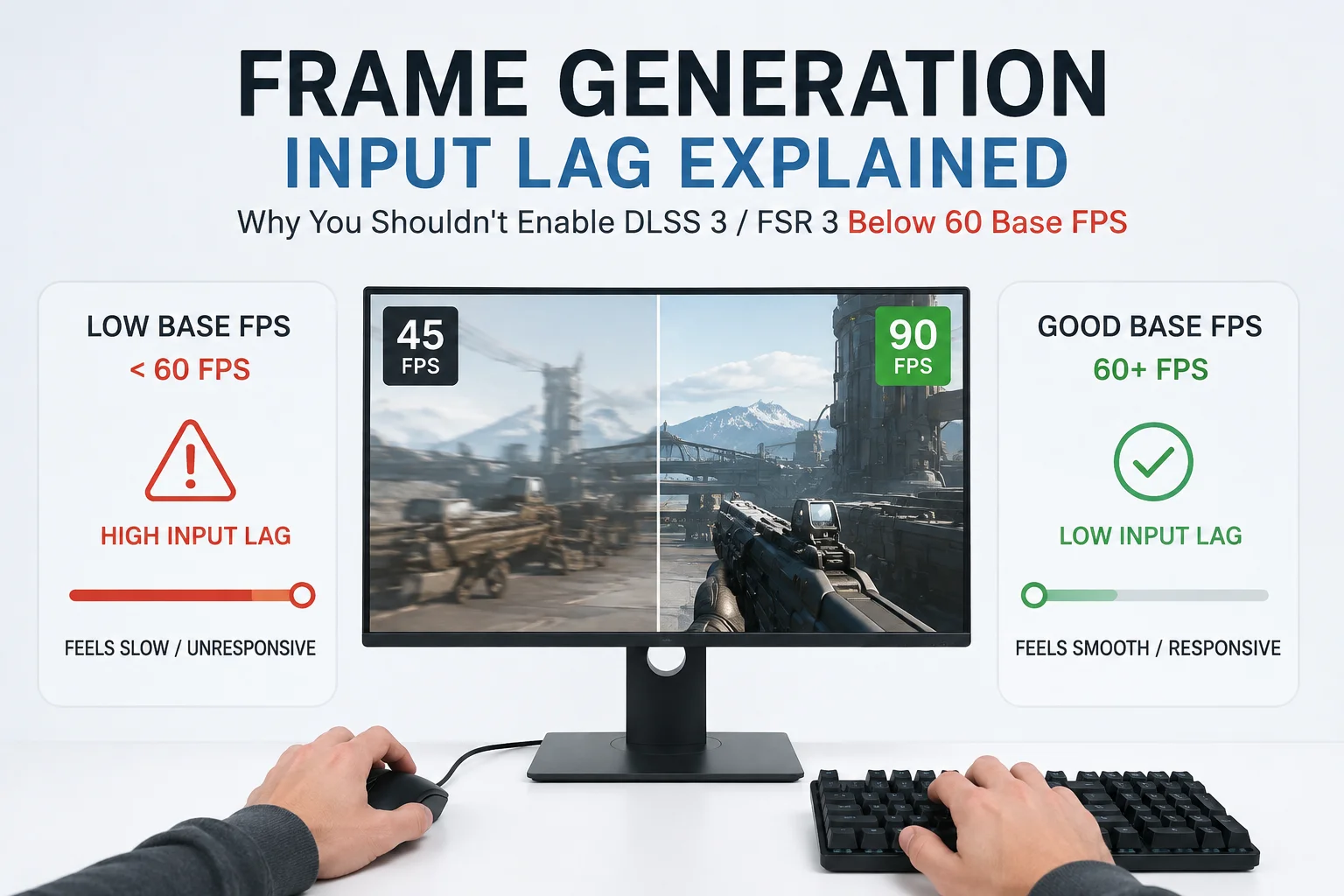
Frame generation makes this more confusing, because it can make the frame counter look great while doing nothing for stutter caused by memory pressure. We covered why that disconnect happens in our piece on the 45 FPS baseline and frame generation, and the same logic applies here, a smooth looking frame counter can hide a genuinely rough feeling experience.
Staying on 8GB in 2026: Pros and Cons
Pros of sticking with 8GB for now:
- Still plenty capable at 1080p with sensible settings
- Texture pool and ray tracing tweaks recover most of the lost 1% lows for free
- Driver-level memory management keeps improving slowly, generation over generation
Cons worth being honest about:
- 1440p Epic settings in newer UE5 titles routinely exceed 8GB on their own
- Ray tracing is close to unusable without heavy compromises elsewhere
- Future UE5 titles are trending toward higher, not lower, VRAM budgets
Should You Just Upgrade the GPU Instead?
Sometimes the settings menu can only do so much, and the honest answer is that a card with more memory headroom fixes the problem at the source rather than working around it. If you're weighing whether the rest of your system can even support a new GPU without becoming the next bottleneck, our upgrade vs build new breakdown walks through exactly that decision.
For anyone shopping specifically at the 1440p price point, our RTX 5070 Ti vs RX 9070 XT comparison covers two cards that both ship with enough VRAM to make most of this article irrelevant for years to come.
Is 8GB VRAM Actually Dead?
Not dead, but definately squeezed. An 8GB card is still a fine 1080p performer and a workable 1440p card once you stop treating "Epic" presets and ray tracing toggles as mandatory. The stutters people blame on "bad PC ports" are often just VRAM doing exactly what it's designed to do when it runs out of room, quietly swapping data in and out, one hitch at a time.
If your 1% lows are the actual problem, texture pool size and ray tracing are almost always the first two settings worth touching, long before anyone needs to spend money on a new card.
Fast Tips Before You Touch a Single Setting
- Watch VRAM allocation with an overlay like MSI Afterburner alongside a frame time graph, not just an FPS counter, so you can see the exact moment usage crosses your card's limit.
- Change one setting at a time. Adjusting five sliders at once tells you nothing about which one actually helped.
- Retest the same trouble spot after each change instead of judging from a different area, since streaming behavior varies a lot by location.
- Check for a day-one patch before blaming your hardware. Shader precaching fixes alone have solved stutter in several UE5 releases within weeks of launch.
- If VRAM usage sits comfortably under your card's limit and the stutter still shows up only once per area, that's shader compilation, not memory, and no in-game setting will fix it.
- Close background capture tools when benchmarking. OBS and overlay software quietly reserve their own slice of memory that skews what you're actually measuring.


Comments 0
Be the first to comment!