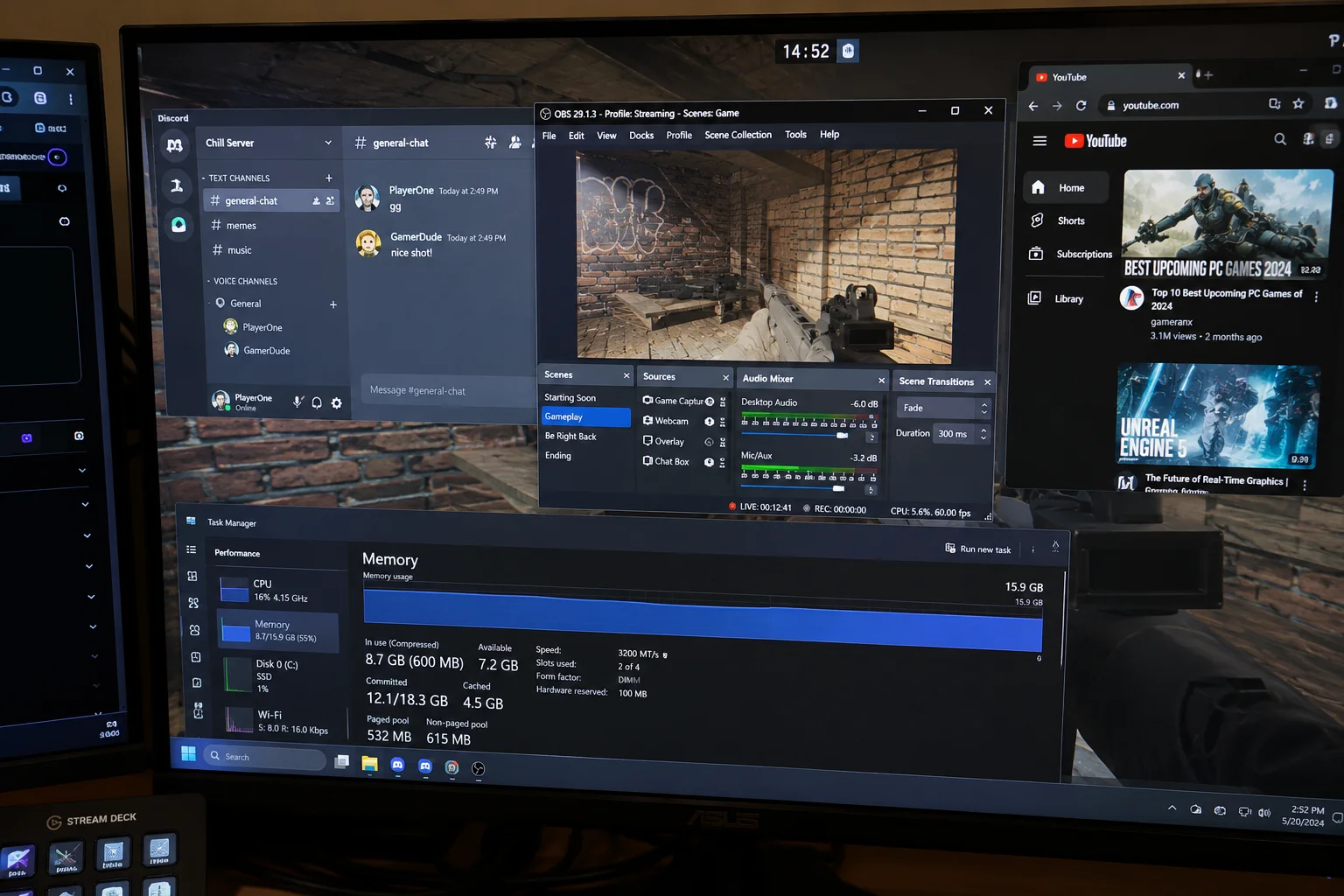
So At First: On a typical gaming session, Discord usually sits between 400MB and 1GB (more if you're in a voice call or screen sharing), Chrome eats 200-500MB per "heavy" tab like YouTube or Twitch, and OBS runs anywhere from 500MB while idle to 2-4GB while streaming at 1080p60 with overlays. Add a game launcher, Windows itself, and the game, and a "light" background load can already claim 6-8GB before you've even loaded a level — which is exactly why 16GB feels tight, 32GB feels calm, and 64GB feels like you're cheating.
Where Did All My RAM Go? The Question Every Gamer Eventually Asks
You close every game you're not playing, you've got 16GB or even 32GB installed, and yet somehow Windows is telling you memory is "at capacity" the moment you alt-tab out of a match. Nothing about that is broken. It's just math you've never actually seen laid out.
Most "how much RAM do I need for gaming" articles give you one flat number and move on. That's not very useful, because the game itself is often not the biggest problem — it's everything running around it. Discord, OBS, Chrome, your launcher, your overlay software, and Windows itself are all quietly holding onto memory the entire time you play, and none of them show up as one neat line item in Task Manager.
This article breaks down the real, measured-in-the-wild memory footprint of the apps gamers actually keep open, so you can see exactly where your 16GB, 32GB, or 64GB is going — and why the same game feels completely different depending on which one you own.
How Much RAM Does Discord Really Use While Gaming?
Discord is an Electron app, which basically means it's running a full Chromium browser instance inside what looks like a lightweight chat client. That architecture is why its memory use swings so widely depending on what you're actually doing in it.
| Discord state | Typical RAM use | Notes |
|---|---|---|
| Minimized, few servers, idle | 200-400MB | Baseline Electron/Chromium overhead |
| Active, many servers joined | 400-800MB | Each server caches icons, roles, and message history |
| In a voice call | 600MB-1GB | Adds dedicated audio processing on top of the base |
| Voice call + screen share/streaming | 1-1.5GB | Video encoding pushes it noticeably higher |
| Long session, no restart | Up to 4GB | Discord itself has acknowledged this and is testing periodic auto-restarts |
That last row isn't exaggeration. Discord confirmed its Windows client can climb well past the 1GB range it targets, which is why it began experimenting with silently restarting the app once RAM usage crosses roughly 4GB and you've been idle for 30 minutes. It's a genuinely useful thing to know if you've ever wondered why Discord "feels heavier" after a five-hour session than it did at launch. You can read Discord's own explanation of the issue in Windows Latest's coverage.
Practical takeaway: budget at least 700MB-1GB for Discord if you're voice chatting while you play, not the 150MB you might remember from years ago.
OBS Studio: How Much RAM Streaming or Recording Actually Costs You
OBS is deceptively light when it's just sitting open, and deceptively heavy the moment you add a real scene, a browser source overlay, or a higher resolution. The gap between "OBS idle" and "OBS actually streaming" is where most people underestimate their needs.
| OBS scenario | Typical RAM use | Bottleneck |
|---|---|---|
| Open, no active scene | 200-500MB | Base app overhead |
| Recording 720p, simple scene | 500MB-1GB | Encoder buffers |
| Streaming 1080p60, webcam + overlays | 1-2GB | Browser source overlays reload assets often |
| 1440p/4K, multiple sources, filters | 2-4GB+ | Frame buffers scale directly with resolution |
Two things drive most of the swing: resolution and browser sources. A static webcam capture barely moves the needle, but a chat overlay or alert widget rendered through a Chromium-based browser source behaves exactly like an extra Chrome tab that never closes. OBS's own community forum is full of threads where users trace unexplained memory growth back to exactly that — see the OBS Forums RAM discussions for real examples.
If you're only recording gameplay for yourself at 1080p with a basic scene, OBS is genuinely light. The moment you add streaming, overlays, or go to 1440p, treat it as a 2GB+ app, not a 500MB one.
Chrome Is Still the Real RAM Monster
Chrome gets blamed constantly, and honestly, it earns it — but not for the reason most people think. It's not that Chrome is "wasteful," it's that every tab is its own isolated process, which is great for stability and genuinely bad for your RAM total.
| Tab type | RAM per tab |
|---|---|
| Static page (blog, wiki, article) | 50-80MB |
| Regular page with images/scripts | 100-200MB |
| Heavy web app (Gmail, YouTube playing, Twitch, Docs) | 200-500MB |
| Each active extension | 20-100MB |
Now do the gaming-specific math: a YouTube or Spotify web player tab, a Twitch chat tab, a wiki or build guide tab, and your email sitting in the background is already 4 tabs, at least two of which are "heavy." That's realistically 1-1.5GB before you count a single extension.
Google's own Chrome Memory Saver announcement claims up to 40% and 10GB less memory across a session by suspending inactive tabs — and independent testing generally backs that up, with the caveat that it only kicks in once Chrome is already under memory pressure, and it skips tabs playing audio, sharing your screen, or pinned. Translation: it helps, but it won't save the tabs you're actually switching between while gaming.
Game Launchers and the Background Apps Nobody Thinks About
Before the game even launches, something is usually already sitting in memory keeping tabs on your library, friends list, and cloud saves.
| Launcher / app | Idle RAM use |
|---|---|
| Steam client | 250-700MB (its "webhelper" process can grow further over long sessions) |
| Epic Games Launcher | 180-430MB |
| GOG Galaxy | ~230MB |
| Rockstar Games Launcher | ~250MB |
| GPU control panel / overlay software | 150-400MB, depending on features enabled |
| Windows 10/11 itself, desktop idle | 2.5-4GB |
That last row matters more than people expect. Microsoft's official Windows 11 requirements list 4GB as the bare minimum for the whole OS, but that's an installation floor, not a comfortable gaming baseline — a real desktop with background services, drivers, and Windows Update running typically sits well above that on its own, as outlets like Digital Trends have measured in practice. None of this is "bloat" in the conspiracy sense — it's just the accumulated cost of Chromium-based apps becoming the default way software gets built, something we touched on when covering why RAM prices have gotten so brutal in 2026.
Putting It All Together: A Real Gaming Session, Line by Line
Here's what a genuinely normal setup looks like — not a worst case, just someone playing with Discord open, a few Chrome tabs, and Steam running.
| Component | Casual session | Streaming session |
|---|---|---|
| Windows 11 background | 2.5-3.5GB | 2.5-3.5GB |
| Steam client | ~0.5GB | ~0.5GB |
| Discord (voice call) | 0.7-1GB | 1-1.5GB (screen share on) |
| Chrome, 4-6 tabs | 1-1.5GB | 1-1.5GB |
| OBS | — | 1.5-2.5GB |
| Background subtotal | ~5-6.5GB | ~7-9GB |
| The game itself (modern AAA) | 4-8GB | 4-8GB |
| Realistic total | 9-14.5GB | 11-17GB |
On a 16GB system, the casual column is already close to the ceiling before Windows even reserves memory for caching and buffers — which is why 16GB machines feel fine right up until you alt-tab, and then suddenly don't. The streaming column simply doesn't fit on 16GB at all once a heavier open-world title is involved, which is the actual, unglamorous reason people upgrade to 32GB. It has very little to do with the game "needing" more, and everything to do with everything around the game needing somewhere to live.
Why Resolution and Streaming Settings Change the Numbers So Much
Every number above scales with resolution because frame buffers scale with resolution. OBS capturing and encoding at 1440p or 4K isn't a small step up from 1080p — it's roughly double to quadruple the raw pixel data being held in memory per frame, on top of whatever your game and Chrome are already asking for. If you're deciding between chasing a higher resolution or a stronger GPU first, it's worth reading how that trade-off plays out in our RTX 5070 Ti vs RX 9070 XT 1440p comparison.
Why Game Type Actually Matters Here Too
An esports title like a competitive shooter or MOBA typically uses 2-4GB on its own, leaving plenty of headroom for everything else. A sprawling open-world game can easily ask for 8-12GB by itself, especially with texture streaming and shader caches involved — and that's before Discord, Chrome, or OBS take their cut. If you're weighing whether your current rig can handle a much heavier release, our breakdown of GTA 6's likely PC requirements is a useful reference point for where that ceiling is heading.
16GB vs 32GB vs 64GB While Gaming: What You Actually Get
16GB
- Pros: Cheapest option, fine for esports titles played alone with light background apps.
- Cons: Almost no headroom once Discord, Chrome, and a launcher are open together; streaming is genuinely risky.
32GB
- Pros: Comfortably covers gaming plus Discord plus Chrome plus a launcher, with room left for a heavier open-world title.
- Cons: Adding OBS at 1080p60 with overlays can still eat into your comfort margin during long sessions.
64GB
- Pros: Streaming, recording, a heavy browser habit, and a demanding game together, all at once, without a second thought.
- Cons: Overkill for most single-purpose gaming setups; the extra cost is rarely reclaimed in performance if you're not multitasking this hard.
What To Do If You're Stuck on 16GB Right Now
- Turn on Chrome's Memory Saver at the "Maximum" setting and keep your must-have tabs pinned.
- Close Discord's voice call video/screen share when you don't need it — audio-only is dramatically lighter.
- In OBS, disable browser source overlays you're not actively using instead of just hiding them.
- Quit game launchers you're not currently playing from, rather than leaving three of them running in the tray.
- If you're weighing a RAM upgrade against other parts, our guide on upgrading vs building new in 2026 walks through whether RAM, GPU, or a full rebuild gives you the better return.
Alternatives Worth Considering
If a full desktop upgrade isn't in the budget this year, a few smaller changes genuinely move the needle. Switching Discord's overlay off when you're not streaming saves a suprising amount of headroom over a long session. Running OBS at a lower canvas resolution and letting your encoder handle the downscale is often invisible in quality but very visible in memory use. And if your GPU is the actual bottleneck rather than RAM, it may be worth reading our best budget GPU picks for 1440p gaming before spending on memory you won't fully use.
Finally
There's no single number that fits everyone, but the pattern is consistent: Discord, OBS, Chrome, and your launcher together routinely claim 5-9GB before the game loads, and that overhead grows fast the moment streaming or a heavy browser habit enters the picture. 16GB works, but only if you treat it like a budget you're actively managing. 32GB is where most gamers who multitask stop thinking about RAM entirely. 64GB is for people already streaming, recording, and running a demanding game at the same time — not a "just in case" purchase for everyone else.
Frequently Asked Questions
Does closing Discord actually free up much RAM?
Yes — fully quitting Discord (not just minimizing it) typically frees 400MB to over 1GB, especially if you'd been in a long voice call session where memory tends to creep upward.
Is OBS bad for RAM if I'm only recording, not streaming?
No. Local recording at 1080p with a simple scene is genuinely light, often under 1GB. The heavy memory use comes from streaming with overlays or pushing to higher resolutions.
Why does Chrome use more RAM than Discord or OBS combined?
Because every tab is its own isolated process by design, which is a stability feature, not a bug. Ten tabs realistically means ten small programs running at once, each holding its own memory.
Will 32GB definately fix stuttering caused by low memory?
If the stuttering is genuinely memory-related — page file thrashing, apps closing unexpectedly, or Task Manager showing consistent 90%+ usage — yes, 32GB usually resolves it. If the stutter is GPU- or CPU-bound instead, more RAM won't help, so it's worth confirming the actual bottleneck first.
Does RAM speed (like DDR5 vs DDR4) matter as much as capacity here?
Speed affects frame rate consistency more than it affects whether background apps fit in memory. Capacity is what determines whether Discord, OBS, and Chrome can all sit open comfortably; speed is a separate performance question entirely.
Do game launchers really need to stay open in the background?
Not always. Most support closing to tray without logging you out, and doing so for launchers you're not actively using can claw back a few hundred MB with zero downside.


Comments 0
Be the first to comment!