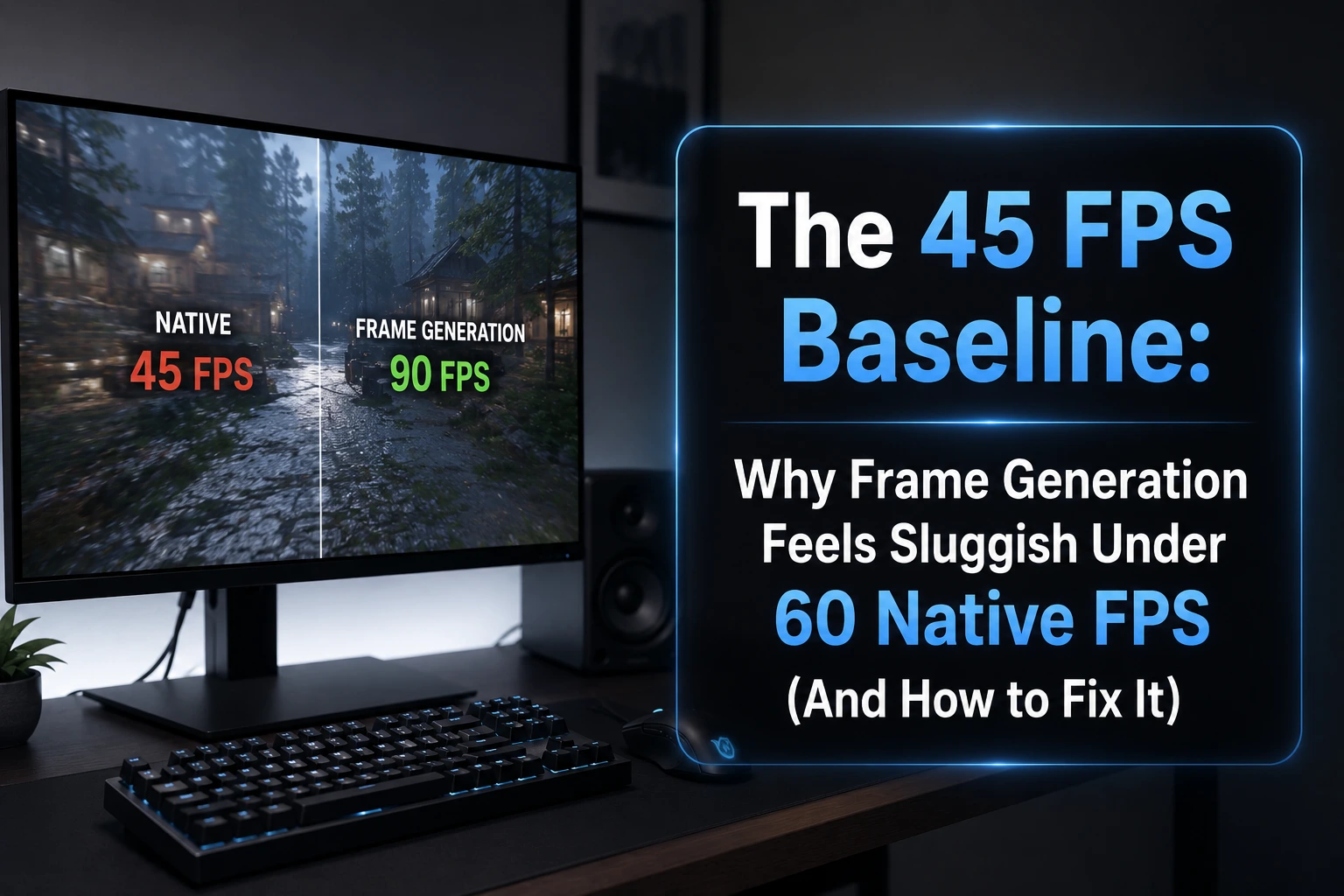
Ever notice how your FPS counter can scream "92!" while your character still moves like it's wading through wet cement? Yeah. You're not losing your mind, and your mouse isn't broken. Something weirder is going on behind that flashy number, and it has a name: the 45 FPS baseline problem.
Frame Generation was supposed to be the free lunch of PC gaming — flip a switch, watch the FPS counter double, feel like you upgraded your GPU for free. Sometimes it genuinely delivers that. Other times it hands you a beautiful, buttery-smooth slideshow that still feels like your inputs are stuck in traffic. The difference almost always comes down to one number most people never check: your native frame rate before the AI starts adding frames.
This is the "what's actually happening behind the curtain" article. No marketing slides, no vague promises — just what your GPU, your game engine, and your mouse are really doing every time a generated frame slides onto your screen.
So Let's Jump To Quick Answer
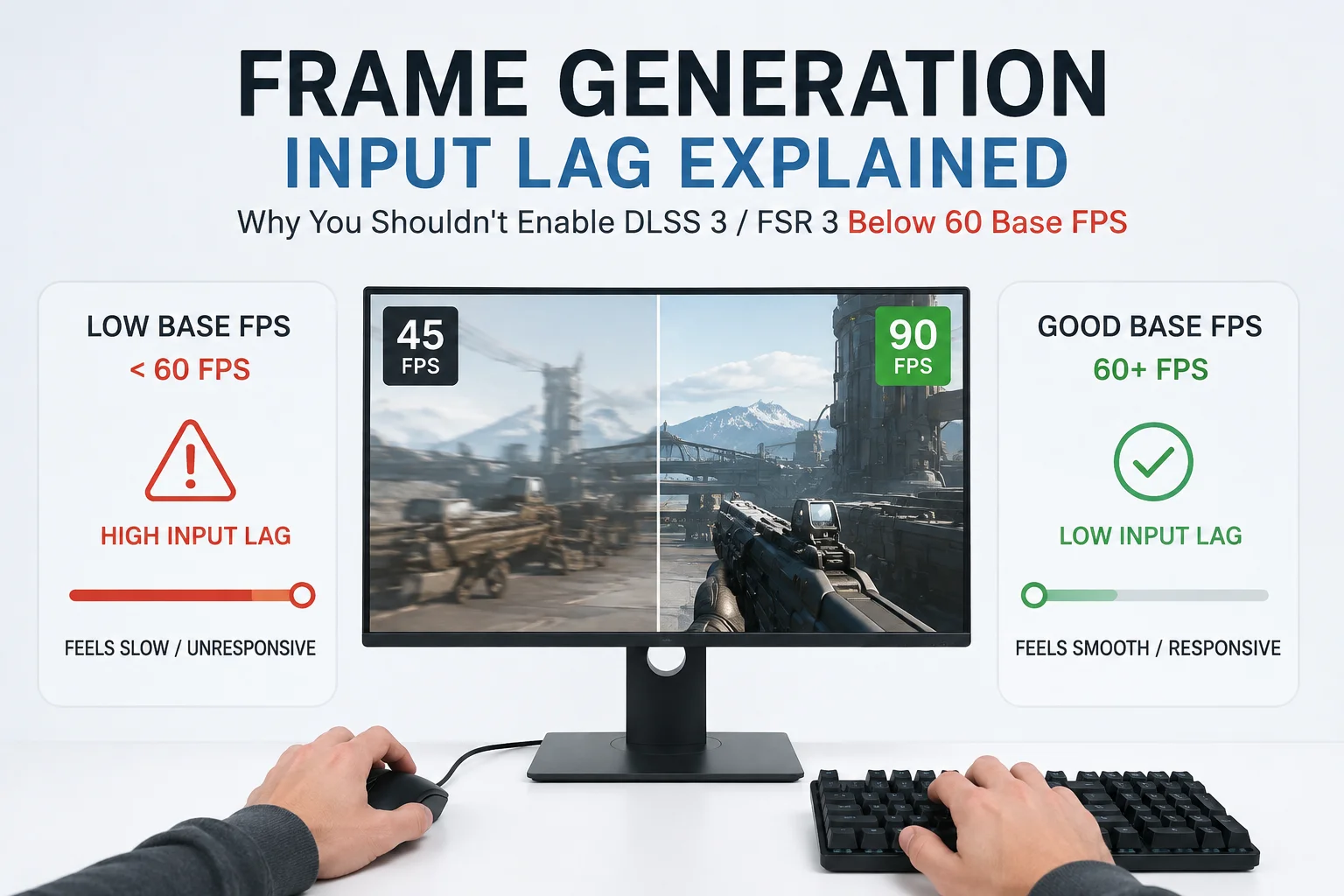
Frame Generation (DLSS Frame Generation, FSR Frame Generation, and similar tools) inserts AI-made frames between the frames your GPU actually renders. Those inserted frames make the image look smoother, but they carry zero new input data — your clicks, mouse movement, and WASD taps only register at the speed of the real, rendered frames underneath. When your native frame rate drops to around 45 FPS or lower, the gap between real frames grows wide enough that input latency becomes noticeable, frame pacing gets uneven, and the game feels sluggish no matter how high the final "generated" FPS number climbs. The fix isn't turning Frame Generation off — it's making sure your native frame rate is healthy (ideally 55-60+ FPS) before you turn it on.
What's Actually Happening Behind the Scenes
Let's clear up the biggest misconception first: Frame Generation doesn't make your game run faster. It makes your game look faster. Those are very different jobs, and mixing them up is exactly why the FPS counter starts lying to you.
Rendered Frames vs. Generated Frames — Not the Same Thing
A rendered frame is the real deal. Your CPU processes game logic, physics, and your inputs, then your GPU draws the actual scene. That frame reflects exactly where your mouse pointed and what button you pressed a few milliseconds ago.
A generated frame is a guess. The AI model looks at two real frames and paints a plausible "in-between" image. It's clever, often convincing, and completely blind to anything that happened after the second real frame was captured. It doesn't know you just flicked your crosshair — it's busy guessing what the last two frames imply.
| Attribute | Rendered (Real) Frame | Generated (AI) Frame |
|---|---|---|
| Contains new input data | Yes | No |
| Reflects current game state | Yes | No — it's interpolated |
| Adds to perceived motion smoothness | Yes | Yes |
| Adds to input responsiveness | Yes | No |
| Can introduce visual artifacts | Rare | Common (ghosting, UI smearing) |
| Requires holding back the next real frame | No | Yes — adds latency |
That last row is the whole ballgame. To insert a frame between Frame A and Frame B, the system has to wait for Frame B to finish rendering before it can build the "in-between" frame and display it in the right order. That means Frame B — the real one — gets held in a queue for a moment instead of hitting your screen immediately. You gain visual smoothness and lose a sliver of responsiveness in the same transaction.
Why 60 FPS Native Became the Unofficial Floor
At 60 native FPS, each rendered frame takes about 16.7 milliseconds to produce. That's already a short window, so holding one frame back to slot in a generated one only adds a small, mostly forgivable delay.
Drop to 45 FPS, and each frame now takes roughly 22 milliseconds. Drop to 30 FPS and you're at a chunky 33 milliseconds per frame. The math doesn't stay friendly — the lower your native rate, the bigger the gap between real frames, and the bigger the "hold" that Frame Generation needs before it can insert its guess.
Frame Pacing: The Silent Killer
Frame pacing is how evenly spaced your frames are over time, not just how many you get per second. A game that averages 60 FPS but delivers frames erratically — 10ms, then 30ms, then 12ms — feels worse than a steady 50 FPS with perfectly even spacing.
Frame Generation depends heavily on consistent pacing to work well, because it's literally splitting the gap between two frames in half (or into thirds and quarters with multi-frame generation). If your native frame times are already jumping around because of CPU spikes, background apps, or a shader compilation stutter, the generated frames inherit that inconsistency and can make the stutter more visually obvious, not less.
The 45 FPS Cliff — Where It Actually Breaks
Independent testing and hardware-maker guidance both land in roughly the same place. Here's how it tends to shake out in practice.
| Native FPS Before Frame Gen | Typical Feel With Frame Gen On | Recommended? |
|---|---|---|
| Below 30 FPS | Sluggish, laggy, heavy ghosting on fast motion | No — fix the base rate first |
| 30–45 FPS | Smoother image, but input lag and artifacts are noticeable | Situational — single-player, slow-paced games only |
| 45–55 FPS | Borderline — okay for exploration, iffy for fast combat | Case by case |
| 55–60+ FPS | Smooth and responsive, latency overhead barely noticeable | Yes — this is the sweet spot |
| 80+ FPS | Excellent — Frame Gen shines, great for high refresh monitors | Yes — ideal use case |
AMD's own guidance points gamers toward roughly 60 FPS as a healthy starting point for FSR Frame Generation, and specifically advises against enabling it under 30 FPS. Intel recommends a 40 FPS floor for XeSS Frame Generation. Independent outlets like Tom's Hardware have made the same point repeatedly: a game that's unplayable at 20 FPS doesn't magically become playable once frame generation pushes the number to 60 or 80, because the underlying input latency never actually improved.
Motion Clarity Isn't Responsiveness (Two Different Illusions)
Here's the part that trips people up the most: your eyes and your hands are judging two completely different things, and Frame Generation only helps one of them.
Motion clarity is about how smooth the image looks as things move across the screen. More frames per second, real or generated, genuinely reduces judder and makes panning, fast turns, and scrolling text look cleaner. This is the part Frame Generation is legitimately great at.
Responsiveness is about how quickly your input shows up on screen. This is governed almost entirely by your native frame rate and rendering pipeline, not by how many extra frames get painted in between. Groups like Blur Busters have spent years documenting exactly how input lag chains build up across rendering, display, and peripherals, and generated frames simply don't participate in that chain — they're cosmetic.
So you can absolutely end up with a game that looks smoother than it's ever looked, while still feeling like you're dragging your mouse through syrup. Both things are true at once. That's not a bug in your perception, its just two different systems being measured by one misleading number.
Pros and Cons of Frame Generation at a Weak Native FPS
- Pro: Dramatically smoother-looking motion on high refresh rate monitors, even at modest base frame rates.
- Pro: Reduces perceived judder in slower, cinematic, single-player games where split-second reactions matter less.
- Pro: Free performance-looking boost without a GPU upgrade, useful for stretching older hardware.
- Con: Adds a real, measurable latency penalty on top of an already-weak native frame rate.
- Con: Visual artifacts, like ghosting around fast-moving objects and smeared UI elements, get worse as base FPS drops.
- Con: The final FPS counter becomes misleading — it no longer reflects how the game actually feels to control.
- Con: Uses extra VRAM to buffer frames, which can be a real constraint on cards with tighter memory budgets, and you might end up loosing frames elsewhere because of it.
How To Fix It: Making Frame Generation Actually Feel Good
The goal isn't to abandon Frame Generation — it's genuinely useful technology. The goal is to stop treating it as a substitute for a healthy native frame rate and start treating it as a topping.
1. Get your native FPS above 55-60 first
Lower your render resolution with upscaling (DLSS Super Resolution or FSR Super Resolution, not the frame generation part), drop a couple of demanding settings like ray tracing or shadow quality, and check your native frame rate with Frame Generation off. That number is your real foundation.
2. Check whether your CPU, not your GPU, is the bottleneck
Frame Generation adds a moderate GPU workload but does very little to fix a CPU bottleneck, since CPU-bound games are already limited by how fast the engine can process game logic. If your GPU usage sits well below 99% while FPS stays low, your CPU or RAM setup is holding things back — our guide on building a balanced CPU, RAM, motherboard, and GPU combo walks through how to spot and fix that kind of mismatch.
3. Watch your VRAM headroom
Frame Generation buffers extra frames in memory, and that overhead stacks on top of whatever your game and settings already use. If you're running a card that's tight on memory, you may be losing frames to VRAM pressure before Frame Gen even gets involved — see our breakdown of how much VRAM you actually need in 2026 for the current baseline.
4. Close the background apps eating your frame time
Discord overlays, OBS capture, and a dozen Chrome tabs all steal CPU cycles that would otherwise go toward keeping your native frame rate stable. We measured the real impact in our piece on how much RAM Discord, OBS, and Chrome actually use while gaming, and the numbers add up faster than most people expect.
5. Turn on NVIDIA Reflex or AMD Anti-Lag
Both vendors ship a low-latency mode designed specifically to claw back some of the latency that Frame Generation adds. NVIDIA Reflex synchronizes CPU and GPU work to reduce render queue delay, and it should always be on alongside Frame Generation, never off.
6. If nothing else works, the hardware is the actual bottleneck
Sometimes the honest answer is that your GPU simply can't hit a healthy native frame rate at your current settings, and no amount of tweaking changes that. If you're stuck choosing between two upgrade paths, our RTX 5070 Ti vs RX 9070 XT comparison and our upgrade vs. build-new guide both help figure out whether a targeted upgrade or a full rebuild makes more sense for your budget.
Alternatives When Your Native FPS Just Won't Cooperate
- Use upscaling alone, without Frame Generation. DLSS or FSR Super Resolution can boost your native frame rate without touching input latency the way frame generation does.
- Lower your target refresh rate. A locked, well-paced 60 FPS often feels better than an unstable 45-90 FPS swing, generated frames or not.
- Cap your frame rate slightly below your monitor's refresh rate. This keeps pacing consistent and avoids some of the queuing delay that variable frame rates introduce.
- Rebuild around a budget that actually hits your native FPS target. Our budget gaming PC build guide is built specifically around getting a real, playable native frame rate before any upscaling tricks get involved.
Last Words
When Frame Generation genuinely helps: Native FPS is already 55-60+, you're chasing a high refresh monitor's full potential, or you're playing a slower-paced single-player game where a few extra milliseconds of latency won't cost you a duel.
When Frame Generation creates a misleading number: Native FPS sits under 45, you're playing anything competitive or fast-twitch, or your frame pacing is already inconsistent before Frame Gen even turns on.
Bottom line: Fix the foundation first. Frame Generation multiplies whatever native performance you hand it — good or bad.
Frequently Asked Questions
Does Frame Generation increase input lag?
Yes, slightly. It has to hold back a real rendered frame to insert a generated one in the correct order, which adds a small delay. At a healthy native frame rate that delay is barely noticeable; at a low native frame rate it becomes obvious.
What is a good native FPS before turning on Frame Generation?
Most testing and vendor guidance points to roughly 55-60 FPS native as the sweet spot, with 45 FPS acting as a rough lower boundary for single-player games and 60 FPS recommended for anything competitive.
Can DLSS Frame Generation and FSR Frame Generation fix a low native frame rate?
No. Neither DLSS nor AMD FSR Frame Generation improve the underlying rendering speed. They add extra visual frames on top of whatever native performance you already have.
Should I use Frame Generation in competitive multiplayer games?
Generally, no. The added latency, even if small, works against you in games where split-second reaction time decides the outcome. Frame Generation is a much better fit for single-player and slower-paced titles.
Why does my FPS counter show 90 but the game still feels like 45?
Because roughly half of those 90 frames are generated and carry no new input data. Your actual control responsiveness still tracks the real, rendered half of that number — the 45 FPS baseline underneath the flashy total.
Chase the real number first, not the shiny one. Once your native frame rate is solid, Frame Generation stops being a band-aid and finally starts doing what it was built to do — make an already good experience look even better.


Comments 0
Be the first to comment!